

Choosing an X870 motherboard for gaming can feel confusing when every board promises more power, more ports, and more future proofing. You are not just picking a socket, you are deciding how your CPU will be fed power, how your graphics card and storage will connect, and how much you should pay for features you may or may not use in 2026 and beyond.
This buying guide gives you a simple framework for how to choose a X870 motherboard for gaming, VRM, IO, price without getting lost in marketing. You will learn what actually matters for AM5, how to weigh VRM design against your CPU plans, how to map IO like USB4 and WiFi 7 to your real setup, and how to decide when a premium ATX board makes sense versus when a more modest option fits your build. For broader context on platform choices, browse the Motherboards & Compatibility archive as you compare.
What Actually Matters
VRM Design and Power Delivery
Your VRM, or voltage regulator module, determines how cleanly and reliably your motherboard can deliver power to your Ryzen processor, especially under sustained gaming loads. For AM5 and Ryzen 7000, 8000 and 9000 series CPUs, you want to look at the phase count, the amperage rating per stage, and the supporting components like chokes, capacitors, and power connectors.
As an example of what a robust design looks like, the spec sheet for boards in this class often lists a 16 plus 2 plus 2 power solution rated for 90A per stage with dual ProCool II power connectors and high quality alloy chokes. You do not need to memorize every number, but you should ask yourself what CPU you plan to run. If you are pairing a high core count Ryzen 9 with heavy multitasking or you plan to enable PBO or other tuning, a stronger VRM with more headroom gives you more stable operation. If you are building around a Ryzen 5 for 1080p or 1440p gaming, you can prioritize efficiency and thermals over extreme phase counts.
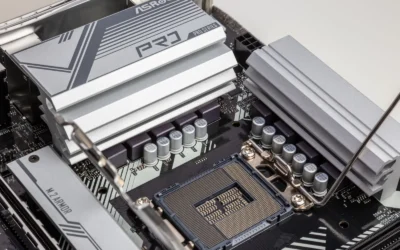
Also consider cooling for the VRM itself. Large heatsinks, heatpipe connections, and good airflow from your case help the power stages stay within their comfort zone. Per the spec sheet, features like Dynamic OC Switcher and Core Flex are designed to help manage switching between overclocking modes, but any overclocking or BIOS tuning is done at your own risk and may void warranty. Always follow the manufacturer mounting instructions, handle the board with anti-static precautions, and keep your case airflow in mind when you evaluate VRM capability.
Connectivity, Expansion and IO
IO is where X870 boards justify their price, and it is also where you can easily overpay for ports you will never use. Start with what you actually plug in. Count your USB devices, your displays, your audio setup, and your network needs, then map those to the rear IO and internal headers.
Modern X870 boards commonly offer USB4, PCIe 5.0 for both graphics and storage, multiple M.2 slots, and WiFi 7. For example, a board that provides 4x M.2 slots gives you room for a fast boot drive plus additional game libraries without adding SATA cables, while PCIe 5.0 support keeps your options open for next generation graphics cards and Gen5 SSDs. If you use a fast external drive, a capture card, or a USB4 dock, those high bandwidth ports matter more to you than to someone who only needs a few USB-A ports for mouse and keyboard.
Networking is another practical filter. WiFi 7 is valuable if you game on wireless or you cannot run Ethernet to your desk, and it helps if you share your connection with streaming or large file transfers. If you already have wired Ethernet and you do not move the PC, you might weigh WiFi 7 lower and focus instead on LAN speed, antenna placement, or the number of USB ports. Check the board layout too, including features like Q-Release Slim for the graphics card, which can make upgrades and maintenance easier in tight cases. As you plan your graphics pairing, you may find it helpful to compare GPU options in our top RTX 5070 ti cards for 1440p gaming guide to see what bandwidth and power your build will need.
Memory Support, BIOS Features and Ease of Use
All X870 boards use DDR5, but how they help you get stable memory performance varies. Look for BIOS level assistance like AEMP, which can help apply tuned profiles for memory kits that are not on the strictest compatibility list, and for AI driven helpers that simplify setup. Features marketed as AI Overclocking, AI Cooling II, and AI Networking are intended to automate tuning and fan curves based on your hardware and usage, which can save you time if you prefer a guided setup over manual tweaking.
When you evaluate memory, focus on the board QVL, or qualified vendor list, and the number of DIMM slots versus your capacity plan. Two sticks are generally easier to run at higher speeds than four, so if you want 32GB now with room to grow, a 2x16GB kit on a four slot board is a sensible path. Also note BIOS update needs for newer Ryzen generations. Some boards support BIOS Flashback without a CPU installed, which is useful if you buy a board that was manufactured before the newest Ryzen 9000 series. Remember that BIOS updates are done at your own risk, so follow the official instructions closely and do not interrupt power during the process.
Form Factor, Price Positioning and Long Term Value
Most X870 boards, including the example ATX models in this guide, use the standard ATX form factor. That gives you more expansion slots, more M.2 sockets, and generally better heatsink coverage, but it also requires a mid tower or larger case with proper clearance for your cooler and graphics card. Before you lock in a board, measure your case for GPU length, CPU cooler height, and radiator support, and confirm that your power supply has the right connectors for the board dual power inputs.
Price in this segment reflects a mix of power delivery, IO, and convenience features. A higher end pick with WiFi 7, USB4, PCIe 5.0 throughout, and a 16 plus 2 plus 2 power design will cost more than a stripped down ATX board with fewer M.2 slots or older wireless. Your job is to decide which premium touches actually improve your daily gaming. If you value a white PCB aesthetic, easy GPU release, and extra M.2 capacity for a growing library, those details add real value. If you are building on a tight budget, you might get a better overall system by choosing a more modest board and putting the savings toward your GPU or SSD, as we often discuss in our Budget Build Guides.
This article contains affiliate links. If you buy through one of our links, CustomPCGaming may earn a commission at no extra cost to you. Commissions never influence which products we recommend or how we rank them. Read our Affiliate Disclosure for details.
Quick Picks at a Glance

ASUS ROG Strix X870-A Gaming WiFi AM5 Motherboard
As an Amazon Associate we earn from qualifying purchases. Product prices and availability are accurate as of the date/time indicated.
Pros
- Excellent stability and fast boot with DDR5 and Ryzen 9000 series CPUs
- Premium white aesthetic perfect for themed builds
- WiFi 7, USB4 and PCIe 5.0 offer top tier future connectivity
- Thoughtful builder features like Q-Release Slim and robust power delivery
Cons
- Premium pricing compared to mainstream X870 boards
- Only 2 SATA ports due to focus on M.2 storage
- Full ATX size requires a spacious case and limits compact builds
The ASUS ROG Strix X870-A Gaming WiFi is a premium ATX motherboard built on the AMD X870 chipset for AM5 socket Ryzen 7000, 8000 and 9000 series processors. It is designed for gamers, creators and enthusiasts who want a powerful, future proof foundation with a striking white aesthetic for a showcase build.
In real world use it delivers rock solid stability and strong performance, with users reporting flawless boots and easy DDR5 overclocking via AEMP. The 16+2+2 90A power stage design keeps even high end chips like the Ryzen 9 9800X3D cool under load, while AI Overclocking, AI Cooling II and Dynamic OC Switcher simplify tuning.
Design and build quality are unmistakably premium, featuring a clean white PCB, durable alloy chokes, solid capacitors and dual ProCool II power connectors. Installation is straightforward, the BIOS is intuitive, and details like Q-Release Slim make GPU removal quick and hassle free.
Drawbacks are limited but worth considering. It carries a premium investment compared to budget boards, and its ATX form factor needs a roomy case. The shift toward M.2 storage also means only two SATA ports, which may limit users with multiple SATA drives.
Overall, the ROG Strix X870-A Gaming WiFi is an outstanding choice for a high end AMD build that balances style, connectivity and reliability. If you want PCIe 5.0, WiFi 7, USB4 and effortless performance in a beautiful white design, it is easy to recommend.
Socket & Chipset: AMD AM5, AMD X870 chipset, supports Ryzen 7000, 8000 and 9000 series
Memory: 4x DDR5 DIMM slots, up to 192GB, AEMP support
Expansion & Storage: PCIe 5.0 graphics slot, 4x M.2 slots, 2x SATA 3 ports
Connectivity: WiFi 7, 1x Ethernet, USB4, 21 total USB ports, HDMI, Optical S/PDIF
Power & Form Factor: 16+2+2 power stages at 90A, dual ProCool II connectors, 24-pin ATX, ATX form factor
Matching a Part to Your Build
If you are planning a 1440p high refresh build with a Ryzen 7 7700 or Ryzen 7 9700 class CPU and a powerful GPU, prioritize a board with solid power delivery and strong IO. The ASUS ROG Strix X870-A Gaming WiFi AMD AM5 X870 ATX is a useful reference here, with its 16 plus 2 plus 2 power stages rated for 90A per stage, DDR5 with AEMP support, PCIe 5.0, 4x M.2, USB4 and WiFi 7. That combination gives you headroom for PBO style tuning, room for multiple fast SSDs, and modern connectivity for peripherals and networking, which matches well with the kind of balanced parts list you see in our ryzen 5 7600 RX 7700 XT 1000 dollar gaming PC amazon build if you scale up the GPU and storage.
If you are building in a compact case or you know you will only use one or two M.2 drives and a single GPU, you can treat extra expansion as a nice to have rather than a must. In that scenario, focus on rear IO layout, the number of USB ports you actually need, and whether WiFi 7 matters for your room setup. An ATX board like the ASUS ROG Strix X870-A Gaming WiFi AMD AM5 X870 ATX still fits in many mid towers and offers Q-Release Slim for easier card swaps, but you should verify case clearance for your cooler and graphics card and confirm your Graphics Cards choice will not block needed headers or slots.
If your priority is a long upgrade path, weigh PCIe 5.0 and USB4 more heavily. A board that already includes PCIe 5.0 for the primary x16 slot and at least one M.2 socket lets you add a Gen5 SSD later without replacing the platform, and USB4 keeps high speed external storage viable as you add peripherals. The ASUS ROG Strix X870-A Gaming WiFi AMD AM5 X870 ATX illustrates this approach with its PCIe 5.0 and USB4 support alongside four M.2 slots, so you can start with a 1TB or 2TB boot drive and add capacity as your library grows, all while keeping your AM5 socket options open for future Ryzen generations within the supported 7000, 8000 and 9000 series.
Common Mistakes
Mistake 1: Overlooking power and thermal headroom. It is easy to focus on ports and forget that your VRM and power supply work as a team. Choose a board whose power design matches your CPU ambitions, and pair it with a power supply that follows the GPU maker recommended wattage with extra headroom for peaks. Do not assume a board with many phases automatically fixes an undersized PSU or poor case airflow.
Mistake 2: Ignoring physical fit and slot layout. ATX boards are spacious, but your cooler height, RAM height, and GPU length still need to clear heatsinks and shrouds. Check that your air cooler or radiator fits your case, that tall RGB DIMMs will not interfere with the cooler, and that your primary M.2 slots have heatsinks you can actually access after the GPU is installed. Features like Q-Release Slim help, but you still need to plan cable routing and drive installation order.
Mistake 3: Paying for IO you will not use. WiFi 7, USB4, and four M.2 slots are excellent if you need them, but they add cost if you do not. If you game on Ethernet, rarely use external drives, and only need two SSDs, you may get more value by choosing a board with fewer premium IO options and reallocating budget to a better GPU, larger SSD, or higher quality DDR5 kit that is on the board QVL.
Who Should Wait or Buy Differently
If you already own a solid B650 or X670 board that meets your gaming needs, or you are building a strict budget system where every dollar is better spent on GPU and SSD, an X870 board is not ideal for you right now. This platform is not a good fit for small form factor builds that require Mini ITX, for users who do not need PCIe 5.0 or USB4 in the near term, or for anyone who prefers to avoid early adopter pricing on WiFi 7. In those cases, waiting for a sale, choosing a well reviewed B650 option, or putting the savings toward graphics and memory will give you a more balanced gaming experience in September 2026 than stretching for IO you will not use.
Frequently Asked Questions
Do I need X870 instead of B650 for gaming?
Not necessarily. B650 can be an excellent value for pure gaming if it has the ports and M.2 slots you need. X870 is worth it when you specifically want USB4, more PCIe 5.0 lanes, extra M.2 capacity, or newer wireless like WiFi 7, and you have an ATX case that can use the expansion.
Is a 16 plus 2 plus 2 power design overkill?
It depends on your CPU and tuning plans. For a mid range Ryzen 5 or Ryzen 7 at stock settings, you will not need the full capability of a 90A per stage design every day, but the extra headroom can help with stability, cooler VRM temperatures, and future upgrades to higher core count chips. If you plan to use PBO or Dynamic OC Switcher features, stronger power delivery is more meaningful.
Should I prioritize WiFi 7 and USB4 for a gaming PC?
Prioritize them if you will actually use them. WiFi 7 is helpful when you cannot run Ethernet or you need high wireless throughput for streaming and large downloads, while USB4 shines for fast external SSDs and docks. If you are wired for networking and use only a few USB devices, you can weigh those features lower and focus on VRM quality, M.2 count, and BIOS ease of use.


Write Your Review
No reviews yet. Be the first to share your experience!