

If you are trying to learn how to check CPU and GPU temperatures and what is too hot, you are making a practical decision about visibility and control. You want to know whether your processor and graphics card are running cool, warm, or dangerously hot, and you want that information in a way that fits how you actually use your PC, whether you chase high refresh rates at 1440p, run a compact case with tight clearance, or plan a future GPU upgrade.
This buying guide gives you a decision framework for 2026, not just a list of gadgets. You will learn which monitoring method matches your build, what specs truly matter when you pick a dedicated display, and how to interpret the numbers so you can act before heat hurts performance. It also shows a few example panels that illustrate the range, from small in-case screens to wider desktop dashboards.
What Actually Matters
1. How You Want to Check Temps: Software First, Hardware Display Second
Start with how you prefer to see data. Software tools that run on your main monitor, like HWInfo, Ryzen Master, or your GPU driver overlay, are free and give you detailed logs, but they require you to tab out or keep an overlay on screen. A dedicated hardware panel puts CPU and GPU temperature, usage, RAM load, and even FPS on a second mini screen so you can glance over without interrupting a game.
Think about your habits. If you only check temps while troubleshooting, software alone may be enough. If you want constant, at-a-glance monitoring during long gaming sessions or while you tune fan curves, a physical display saves time and keeps your main screen clean. For more background on keeping a system healthy, browse the Troubleshooting & Optimization archive for related guides.
2. Compatibility, Connection, and System Overhead
Not every panel works with every system. Many of the current options are Windows only, with some requiring Windows 10 or 11 64-bit or Windows 7 64-bit or above, and they do not support Mac or Linux. Check the software requirement before you buy, and confirm whether the panel needs its own English version software or works without extra tools. Also note that several models have no HDMI port by design, they stream data over USB so they do not act as a normal extended desktop and avoid mouse drift issues.
Connection matters for case compatibility. Some displays use a single USB-C cable that can be routed to an internal USB header, so you do not occupy a GPU output. Others include both an external USB-C to A cable and an internal 4-pin to 9-pin cable for a cleaner in-case look. Look for features like auto-start, auto screen off, and a low overhead Game Mode that pauses video backgrounds while you play, so the monitor does not add CPU or RAM load. As with any internal hardware, handle components with anti-static precautions and follow the manufacturer mounting instructions.
3. Size, Placement, and Readability Inside or Outside the Case
Size and viewing angle determine whether you will actually use the display. Compact 3.5 inch IPS panels fit easily inside small cases or on a tight desktop, while 4.6 inch and 5 inch panels give you more room for charts and larger numbers. A 9.2 inch wide panel with a 1920×462 resolution is closer to a true secondary dashboard and works best on a desk stand or along the bottom of a large case.
Check your case clearance before you choose. Measure the flat area behind tempered glass, the space near your GPU, and whether you have a free USB header. IPS technology helps with wide viewing angles, and features like 360 degree rotation, horizontal and vertical switching, and brightness adjustment make the readout legible from your chair. If you are also evaluating cooling, it helps to review how case airflow affects temps, like in this look at how to choose an airflow case for a hot GPU, and to verify cooler height or radiator clearance against your case spec sheet.
4. Customization and Understanding What Is Too Hot
A good monitor does more than show a number, it helps you understand it. Look for a visual theme editor, customizable layouts, and support for image and video themes so you can prioritize the sensors you care about, such as CPU temperature, GPU temperature, RAM usage, HDD data, and FPS. Built-in themes and a 16G flash card for custom videos are nice if you want the panel to match your build aesthetic, but the core value is clear, accurate labeling of each sensor.
What counts as too hot depends on load and hardware generation. At idle, owners commonly report CPUs in the 30s to 50s Celsius and GPUs in a similar range, while gaming loads often push CPUs into the 70s and GPUs into the 70s to low 80s. Sustained temps that approach the throttling point, often in the 90s to 100 for many modern CPUs and mid 80s to 90 for many GPUs, deserve attention, especially if you see clock drops or fan noise spikes. Use the panel to watch trends over time rather than a single spike, and remember that BIOS updates and overclocking are done at your own risk and may void warranty, so make changes cautiously.
If you are pairing a new monitor with a cooler upgrade, guides like how to choose a CPU cooler for ryzen 7 9800X3D and best air cooler for ryzen 7 9800X3D can help you match cooling capacity to your heat output before you worry about the display itself.
To see how the current options compare on size, connection, and features, here are a few options that show the range:
This article contains affiliate links. If you buy through one of our links, CustomPCGaming may earn a commission at no extra cost to you. Commissions never influence which products we recommend or how we rank them. Read our Affiliate Disclosure for details.
Quick Picks at a Glance

Prime WOWNOVA 3.5 Inch IPS USB PC Temperature Monitor

Prime Flylin 3.5 Inch IPS USB-C PC Temperature Monitor

WOWNOVA 5-Inch IPS PC Sensor Panel
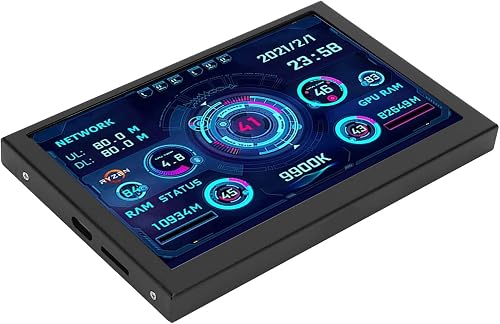
ASHATA 5 Inch IPS USB Mini Screen PC Temperature

MT-VIKI 9.2 Inch IPS PC Hardware Monitor 1920×462

Prime WOWNOVA 4.6" PC Sensor Panel
As an Amazon Associate we earn from qualifying purchases. Product prices and availability are accurate as of the date/time indicated.
Pros
- Clean and simple single-cable installation off a USB header
- Sharp IPS panel that remains readable from wide angles
- Extensive customization for layouts, themes and screen orientation
- Sturdy metal construction despite compact and lightweight size
- Adds useful monitoring and visual appeal inside the case
Cons
- English software can be confusing to download, find and customize
- Temperature and usage data may differ from Task Manager readings
- Very compact 3.5-inch size can be hard to read at a distance
The WOWNOVA 3.5 Inch IPS USB Mini Screen is a dedicated PC temperature monitor designed to mount inside your case as a secondary display. It is built for gamers, modders and PC enthusiasts who want live system stats without adding a full second monitor.
In real-world use it displays CPU, GPU, RAM and HDD data through its English software with customizable themes and layouts. Users find it accurate when compared to official system utilities and appreciate the variety of visual options once the software is configured.
Design wise it features a metal shell, glossy IPS panel with 1000:1 contrast and 250 nits brightness, and a slim 0.31-inch profile. The 320x480 resolution is crisp for its size, and the single USB-C connection allows for tidy internal wiring without needing HDMI or separate power.
Drawbacks center on the software experience, which many users describe as unintuitive and tricky to install or locate after download. The screen is also smaller than many expect, and the short, stiff USB-C cable can limit placement options on a desk or inside larger cases.
Overall this is a clever and affordable tool for builders who enjoy tweaking and personalizing their setup. If you do not mind a short learning curve with the software, it offers great functionality and style for a compact monitoring solution.
Display: 3.5-inch IPS LCD, 320x480 native resolution, 1000:1 contrast ratio, 250 nits brightness, 170-degree viewing angle, glossy finish.
Connectivity and Power: USB Type-C single cable, 5V DC, no HDMI or external power required, supports internal USB header mounting.
Design and Build: Metal shell, dimensions 2.17 x 3.35 x 0.31 inches, weight 0.11 kg, panel mount type, supports horizontal and vertical orientation.
Features: Real-time CPU, GPU, RAM and HDD monitoring, customizable layouts and theme editor, auto screen off and brightness adjustment, flicker-free with FreeSync support.
Pros
- Simple single-cable USB setup that does not occupy graphics card resources
- Highly customizable with multiple themes and DIY background support
- Flexible installation with 360 degree rotation and included bracket and adhesive
- Clear IPS display with HD resolution, 60Hz refresh rate and wide viewing angle
Cons
- Setup software is often reported as hard to find, with broken links and security warnings
- Windows only compatibility with no brightness adjustment and limited template quality
- Very compact 3.5 inch size can be difficult to read unless mounted close to you
The Flylin 3.5-inch IPS USB Type-C Temperature Monitor is a compact secondary screen designed for PC enthusiasts, gamers and case modders who want real-time system stats at a glance. It is ideal for users who want a budget-friendly sensor panel inside or beside their case without investing in a larger HDMI display.
In real-world use, it shows CPU, GPU, RAM and HDD data plus time and date through a single USB connection, with no need for AIDA64 or a dedicated power supply. The built-in themes and one-click background replacement make customization easy, and the auto-start function lets the screen power on and off with your PC.
Design wise, the panel uses a glossy IPS display with 1024x600 resolution, 1000:1 contrast and 180 degree viewing angles in a tiny rectangular form factor. It comes with an adjustable bracket, double-sided acrylic adhesive and a 4-pin motherboard transfer cable, keeping the overall footprint light and portable at just 0.04 kg.
There are notable drawbacks to consider. Many users report the configuration software is difficult to download and may trigger security warnings, and the screen is not always recognized as a display in Windows. It only supports Windows, offers no brightness adjustment, and some templates look dated with limited setting options.
Overall, this is an affordable and space-saving option for hobbyists who want a simple, close-up stats display and enjoy tinkering with themes. If you need reliable plug-and-play software, brightness control or easy long-distance readability, you may want to consider a larger, more established sensor panel instead.
Screen: 3.5-inch IPS LCD, Glossy finish, 1024x600 native resolution, 1000:1 contrast ratio, 60Hz refresh rate, 2ms response time, 180 degree viewing angle.
Connectivity: USB Type-C and USB 3.0, single data cable for power and video, no HDMI required, does not occupy GPU resources.
Features: CPU, GPU, RAM, HDD monitoring, time and date display, 360 degree rotation, multiple built-in themes, one-click background and theme switching, auto start with PC.
Compatibility: Windows only, compatible with laptop and desktop, includes adjustable bracket and acrylic adhesive for mounting.
Model: Flylin JY2024115-01, Dimensions 6 x 4.3 x 1.3 inches, Weight 0.04 kg, Color Black, 1 Year Manufacturer Warranty.
Pros
- Clean single-cable installation via internal USB header keeps your build tidy
- Bright IPS panel with wide viewing angles looks great from any position inside the case
- Highly customizable themes and video support for a truly personal setup
- Lightweight software efficiently tracks all key hardware metrics in real time
Cons
- Software has a learning curve and is not very intuitive for first-time users
- 800x480 resolution is sharp for its size but not Full HD
- Glossy screen finish can show reflections under bright lighting
The WOWNOVA 5-inch Computer Temp Monitor is a dedicated sensor panel that lives inside your PC case to display live hardware stats at a glance. It is designed for gamers, overclockers and custom builders who want a compact second screen without using a GPU video output.
Standout features include real-time monitoring of CPU, GPU, RAM, FPS and HDD data through lightweight, self-developed software. Dynamic video themes, custom layout support and the included 16GB card let you personalize animations, while auto-start and brightness controls make daily use effortless.
Build quality is solid for the category, with a slim 0.39-inch aluminum housing and a bright IPS panel offering 178-degree viewing angles. The single USB-C connection allows clean internal routing to a motherboard header, and included brackets and magnetic strips make mounting simple and secure.
There are a few drawbacks to consider. The software, while powerful, is not immediately intuitive and takes some time to learn. The 800x480 resolution is clear at this size but not high definition, and the glossy finish can reflect light in bright rooms.
Overall, this is a stylish and practical upgrade for anyone who wants functional system monitoring with visual flair. If you value a tidy build, customizable themes and at-a-glance performance data, it delivers strong value and a polished look inside your case.
Display: 5-inch IPS LCD, 800x480 resolution, 16:9 aspect ratio, 250 nits brightness, 1000:1 contrast, 178-degree viewing angle, glossy finish
Connectivity: Single USB Type-C, compatible with USB 1.0 to 3.0, internal USB 2.0 header support, no HDMI or external power needed
Monitoring: CPU, GPU, RAM, HDD data and FPS via self-developed software with customizable layouts and video theme support
Design: Aluminum housing, 2.17 x 3.35 x 0.39 inches, panel mount with bracket and magnetic strips, 16GB flash card included
Features: Dynamic video themes, drag-and-drop theme editor, horizontal and vertical orientation, auto-start, brightness adjustment
Pros
- Bright, sharp IPS panel with excellent viewing angles and glossy finish
- Easy plug-and-play connection using a single USB-C cable
- Highly customizable display with multiple themes and DIY background support
- Versatile mounting options for inside or outside the PC case
- Compatible with AIDA64 and community Python scripts for advanced users
Cons
- Software setup can be confusing and the interface feels unpolished
- Included USB-C cable is sometimes power-only and may need a data-capable replacement
- Windows only support with no native macOS or Linux compatibility
The ASHATA 5 Inch IPS USB Mini Screen is a dedicated sub-display designed to give PC enthusiasts live hardware feedback without opening software overlays. It is ideal for gamers, overclockers and custom PC builders who want constant visibility of system performance inside or outside their case.
In real-world use it delivers detailed monitoring of CPU, GPU and RAM usage and temperatures, plus network speed, volume, date, time and weather forecasts. The 800x480 IPS panel is bright and legible at wide angles, and the single USB Type-C connection keeps wiring clean while the lightweight software runs with minimal resource impact.
Design is compact and practical at 3.1 x 3.1 x 4.8 inches, with a glossy LCD finish and wall-mount capable bracket. Build quality is solid for a mini panel, and the package includes everything needed including a display, USB power cable, motherboard adapter cable, special data cable and bracket for flexible placement.
There are some drawbacks to note. Several users report the included USB-C cable only provides power and does not transfer data, requiring a swap to a proper data cable. The companion software, sometimes listed as Turzx, can be confusing to install and the instructions do not always match the downloaded files.
Overall, this 5-inch monitor is a fun and functional upgrade for any custom build that benefits from at-a-glance diagnostics. If you are comfortable with a little software tinkering and have a spare USB header or port, it offers excellent value and visual appeal for monitoring your rig.
Display: 5-inch IPS LCD, 800 x 480 native resolution, 16:9 aspect ratio, 1000:1 contrast ratio, 178-degree viewing angle, glossy finish.
Connectivity: USB Type-C and USB 2.0, HDMI port, single-cable operation with no external power required, Windows compatible.
Features: Real-time CPU, GPU, RAM monitoring, network speed, weather, time and volume display, built-in themes with customizable backgrounds, energy-saving auto-close function.
In the Box: 1x Display, 1x USB Power Cable, 1x Motherboard Adapter Cable, 1x Special Data Cable, 1x Bracket, 1x User Manual. Model ASHATAsrf1vtc4x0360.
Pros
- Sharp and bright 9.2-inch IPS display with excellent viewing angles and 1920x462 resolution
- Zero HDMI footprint preserves GPU performance and avoids dual monitor hassles
- Flexible mounting for desktop stand or inside case with included cables
- Game Mode keeps FPS stable while monitoring in the background
- Custom theme software allows personalized dashboards and video backgrounds
Cons
- Windows only, requires 64-bit Windows 7 or above, no support for Mac, Linux or Chrome OS
- Cannot be used as a standard extended desktop display due to no HDMI port
- Companion software is required and can feel clunky to configure at first
The MT-VIKI MT-LCD1 is a dedicated 9.2-inch hardware monitor, not a traditional second desktop display. It is built for Windows gamers, modders and custom PC builders who want a compact, always on dashboard for system vitals without sacrificing main screen space.
In real world use it delivers instant, readable tracking for CPU and GPU temperatures and loads, RAM usage, storage and network speeds. The dedicated software lets you switch between tech dashboards, stylized charts or your own video loops, while Smart Game Mode pauses animations to keep CPU and RAM overhead extremely low during gaming.
Build quality is solid for its class with a slim 0.47 inch profile, glossy IPS panel and crisp 1920x462 resolution at 60Hz. The included L-shaped desktop stand and internal 4-pin to 9-pin cable give you clean setup options, and horizontal or vertical rotation makes it easy to fit on a desk or inside a case.
There are clear limitations to note. It requires proprietary software and only works with Windows 7 64-bit or above, so Mac and Linux users are excluded. It also lacks an HDMI port, so you cannot use it as an extended monitor for browsing or apps, and the software can take some time to learn.
Overall, this is a stylish and practical upgrade for Windows based gaming rigs that benefits from real time monitoring. If you want a bright, customizable hardware dashboard that stays out of the way of your GPU, it is a compelling and affordable choice.
Model: MT-VIKI MT-LCD1 | Screen: 9.2 inch IPS, Glossy, 1920 x 462, 60Hz, 8ms response
Connectivity: USB only via USB-C to A (1.5m external) or 4-pin to 9-pin (50cm internal), no HDMI port
Compatibility: Windows 7 64-bit or above required, dedicated software needed, not compatible with Mac, Linux or Chrome OS
Dimensions: 9.61 x 2.48 x 0.47 inches | Features: Height adjustment, horizontal and vertical rotation, Game Mode, custom themes and video loop support
Pros
- Clean one-cable internal installation keeps case tidy
- Highly customizable layouts, themes and orientation options
- Versatile design works inside the case or on your desk
- IPS panel offers sharp visuals and great viewing angles
- Includes desktop stand and aluminum housing for durability
Cons
- Compatible only with Windows 10 and 11, no macOS or Linux support
- Glossy screen finish can cause reflections under bright lighting
- 10ms response time is slow for fast motion video playback
The WOWNOVA 4.6 inch PC Sensor Panel is a compact secondary display designed for PC enthusiasts, gamers and modders who want real time system stats at a glance. It is perfect for anyone who wants to monitor CPU, GPU, RAM, FPS and HDD data without cluttering their main screen.
In real world use, the self-developed software makes setup fast with one click operation and low resource usage. You get two useful modes, a dedicated sensor dashboard and a full extended desktop, plus support for custom dynamic video themes that let you personalize your rig.
Build quality is a strong point thanks to the slim aluminum housing that measures just 0.39 inches thick. The 960x320 IPS panel delivers a crisp image with a 2000:1 contrast ratio and wide viewing angles, and the included desktop stand adds flexibility for inside case or desk placement.
There are some drawbacks to consider. The panel only works with Windows 10 and 11 and connects via an internal 9-pin USB header, so it is not plug and play for all users. The glossy finish can reflect light and the 10ms response time is not ideal for smooth video.
Overall, this is a fun and functional upgrade for custom PC builds that adds both style and utility. If you want an affordable, highly customizable way to track system performance and show off your setup, the WOWNOVA panel is a compelling choice.
Display: 4.6 inch IPS LCD, 960x320 resolution, 60Hz refresh rate, 2000:1 contrast ratio, 10ms response time, glossy finish, 2.40:1 aspect ratio.
Design: Aluminum housing, black color, dimensions 5.27 x 2.22 x 0.39 inches, display area 4.34 x 1.44 inches, includes desktop stand.
Connectivity: Single 9-pin USB header connection, no HDMI required, VGA and USB hardware connectivity listed.
Compatibility & Features: Windows 10 and 11 only, sensor monitoring for CPU, GPU, RAM, FPS, HDD, extended desktop mode, horizontal and vertical switching, brightness adjustment, auto-start.
Matching a Part to Your Build
Small case or first time builder who wants simple monitoring: If you have a compact micro ATX or mini ITX case with limited header space, a 3.5 inch panel is often the easiest fit. The WOWNOVA English Version Computer Temp Monitor and the Flylin 3.5in IPS USB Type C Temperature Monitor both use a single USB cable, require no HDMI, and offer IPS viewing with 320×480 resolution and a slim metal housing. They display CPU, GPU, RAM and HDD data with customizable layouts and auto start, so you get essential temps without crowding your case or occupying a GPU port.
Mid tower showcase build that lives on your desk: If you have room behind glass or on a stand and want a more detailed dashboard, consider a 5 inch or 4.6 inch option. The WOWNOVA 5″ Computer Temp Monitor adds an 800×480 IPS screen, aluminum housing, and dynamic video theme support with a 16G flash card, while the WOWNOVA 4.6″ LCD Screen Inside PC Case Screen offers a 960×320 panel and a desktop stand with both internal 9-pin and extended desktop modes. Both let you switch between horizontal and vertical orientation and drag to edit layouts, which is useful if you want CPU and GPU temps plus FPS and network speed at a glance.
Enthusiast who wants a wide, desk level dashboard: If you stream, create content, or just prefer a long horizontal readout, the MT-VIKI 9.2 Inch IPS PC Secondary Screen provides a 1920×462 wide view and dedicated theme software for charts and video loops. It connects via external USB-C to A or internal 4-pin to 9-pin, includes an L-shaped stand, and offers a Game Mode that pauses dynamic backgrounds to keep overhead low. Just note it is Windows 7 64-bit or above only, has no HDMI, and cannot act as a normal extended desktop, so it is purely a data monitor.
Common Mistakes
Buying a display that does not match your OS or header layout. Some panels work only with Windows and need specific software, while others need a free internal USB header. Before you order, confirm your OS version, check whether you have an open 9-pin header or a rear USB port you are willing to use, and verify that the cable length reaches your chosen mounting spot.
Ignoring case and cooler clearance. A panel that looks great online can block airflow or press against a tall air cooler or thick GPU. Measure the interior flat space, check cooler height and radiator clearance against your case manual, and follow the manufacturer mounting instructions. If your temps are already high, prioritize airflow and cooler choice first, then add the display.
Chasing numbers without context. A single high reading does not always mean failure. Short spikes during loading screens are normal, while a steady climb under load that stays near throttling limits suggests dust buildup, poor paste application, or insufficient airflow. Use the display to track trends over a full gaming session and compare idle versus load, rather than reacting to one momentary peak.
Who Should Wait or Buy Differently
A dedicated temp monitor is not ideal for you if you rarely look at temps, run Mac or Linux as your daily driver, or have no free USB header and no desire to run extra software at startup. In those cases, stick with on screen software overlays or your BIOS fan controls, and put the budget toward better cooling or case airflow first. This type of panel is also not a good fit if you need a true second desktop for work, since many models have no HDMI and cannot show arbitrary windows, they only show sensor data.
Frequently Asked Questions
How do I check CPU and GPU temperatures without a dedicated screen?
You can use free software that reads built in sensors and shows an overlay while you play. Install a trusted hardware info tool, enable its overlay or logging, then run a game or stress load for 10 to 15 minutes and watch average and maximum values. This method costs nothing and is often enough for occasional troubleshooting.
What temperature is too hot for my CPU and GPU?
There is no single number for every chip, but owners commonly report that most modern CPUs are comfortable in the 70s under gaming load and start to throttle near the 90s to 100, while many GPUs aim to stay in the 70s to low 80s and throttle in the mid 80s to 90. If you see sustained temps near those limits, frequent thermal throttling, or sudden performance drops, clean dust filters, check fan curves, and verify cooler mounting.
Do these mini screens hurt gaming performance?
When set up correctly, the impact is minimal. Models that stream data over USB without using a GPU HDMI output and that offer a Game Mode to pause video backgrounds are designed for low overhead. Keep the software updated, enable auto start only if you need it, and close unnecessary background themes if you notice any stutter.



Write Your Review
No reviews yet. Be the first to share your experience!