

Deciding is it cheaper to build or buy a gaming PC in 2026 is one of the most common crossroads for new and returning PC gamers. You want solid performance without overspending, but the answer changes with your resolution and refresh target, the platform you choose, the size and clearance of your case, your power budget, and whether you are buying for what you play today or what you want to play next year.
This buying guide gives you a decision framework, not just a list of deals. You will learn how to weigh total system cost against performance and upgradability, and when a prebuilt makes sense versus picking every part yourself. For a broader look at the tradeoffs in this category, browse the Prebuilt vs Custom archive, and keep your long term plan in mind as you compare.
What Actually Matters
The Real Total Cost: Parts, Software, and Your Time
When you compare building versus buying, look beyond the headline system price. A custom build requires you to source each component, and you should account for the operating system license, any extra fans or cables, and the value of your time for assembly, cable management, and initial setup. A prebuilt bundles those items and often includes Windows 11 Home, WiFi 6 and BT 5.3, and assembly with warranty support, which can save you hours if you prefer a plug and play experience.
To make a fair comparison, list what you actually need to be productive and to game. That includes storage capacity, memory, and connectivity, not just the CPU and graphics. For example, a system with 256 GB M.2 storage and 8 GB RAM may be affordable up front, but you should budget for a larger drive or extra memory if your library or multitasking needs are growing. Review related Budget Build Guides to see how builders balance these line items across a full parts list.
Performance Target and Graphics Reality
Your monitor and the games you play should dictate your graphics choice. Integrated graphics only, with no dedicated GPU, can handle desktop work, streaming video, and very light titles at modest settings, but it is limited by shared system memory and will not deliver smooth high detail 1080p gaming in demanding titles. If your goal is consistent 1080p gaming at higher settings or higher refresh rates, you should plan for a dedicated graphics card with its own VRAM and power requirements.
CPU and memory matter too, but they do not replace a GPU for gaming. A system described as an i5 CPU up to 3.6GHz with 8 GB RAM can feel responsive for everyday tasks and light play, yet 8 GB is now the minimum for many modern games and for heavy multitasking, and 256 GB of M.2 storage fills quickly once you install a few large titles. When you evaluate any option, check per the spec sheet whether the memory is single or dual channel, how many storage slots are free, and what graphics solution is included, so you can map it to your target resolution and detail level.
Upgradability, Warranty, and Support
Upgradability is where build versus buy often diverges. A custom build lets you pick a motherboard, case, and power supply that leave room for a stronger GPU, more RAM, and additional drives later. Many prebuilts use a compact matte black case with a 400W power supply and a set of RGB fans that look appealing and keep air moving, but you should verify how many RAM slots, M.2 slots, and PCIe power connectors are available, and whether the case supports longer graphics cards and additional storage.
Warranty and support are the other side of the coin. A prebuilt typically offers a single system warranty and centralized support, which simplifies troubleshooting if something fails. A custom build gives you individual component warranties and full control over part selection, but you are responsible for diagnosing issues and handling returns. If you value hands off support, a prebuilt has an advantage. If you value part choice and the ability to swap components over time, a custom build gives you more freedom, provided you follow manufacturer instructions and handle parts with anti-static precautions.
Power, Cooling, and Physical Fit
Power and thermals determine what upgrades are realistic. A 400W power supply is adequate for an integrated graphics system and for low power upgrades, but it does not leave much headroom for a mid range or higher dedicated GPU, which often calls for a higher wattage unit per the GPU maker recommended wattage. You should add up the expected CPU and GPU draw and then add headroom for peaks and future additions, rather than assuming any power supply can handle any card.
Cooling and fit are equally important. Check cooler height or radiator clearance against your case, and confirm that your chosen cooler clears your RAM and side panel. Cases with mesh fronts and multiple RGB fans can improve airflow, but fan count alone does not guarantee low temperatures if the case is compact or cable routing blocks intake. For help thinking through airflow, see how to choose an airflow case for a hot GPU and compare how different layouts affect GPU temperatures and noise. Also remember that BIOS updates and overclocking are done at your own risk and may void warranty, so proceed carefully and follow the board maker guidance.
A few options that show the range can make these tradeoffs more concrete. Use the examples below to see how integrated graphics, memory size, storage capacity, and power supply wattage change the value equation when you ask is it cheaper to build or buy a gaming PC in 2026:
This article contains affiliate links. If you buy through one of our links, CustomPCGaming may earn a commission at no extra cost to you. Commissions never influence which products we recommend or how we rank them. Read our Affiliate Disclosure for details.
Quick Picks at a Glance
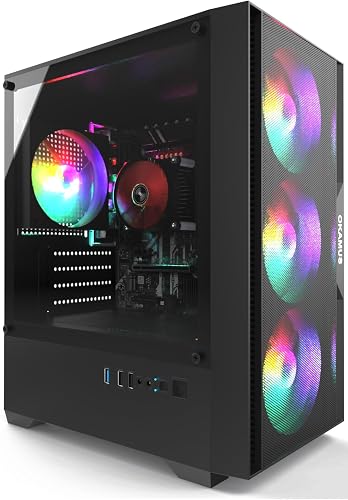
OKAMUS i5 Budget Desktop Tower 8GB RAM 256GB M.2
As an Amazon Associate we earn from qualifying purchases. Product prices and availability are accurate as of the date/time indicated.
Pros
- Affordable complete system that is pre-built and ready to use
- Quick boot times and snappy everyday performance from M.2 SSD
- Includes WiFi 6 and Bluetooth 5.3 for easy wireless connectivity
- Attractive design with RGB lighting and efficient air cooling
- Good low-cost starting point for users who plan to upgrade components
Cons
- Older 4th Gen Intel i5-4570 and DDR3 platform limits future upgrade path
- No dedicated graphics card, integrated graphics is weak for modern games
- Small 256GB storage and older motherboard lacks TPM 2.0 support
The OKAMUS-7 is a budget pre-built tower built around the older Intel Core i5-4570 with integrated graphics, 8GB of DDR3 RAM and a 256GB M.2 SSD. It is aimed at students, home offices and first-time buyers who need an inexpensive, ready-to-use Windows 11 system for everyday tasks.
In real world use it boots quickly and handles web browsing, office apps, streaming and light multitasking smoothly thanks to the M.2 drive. With no dedicated GPU and graphics limited by shared system memory, it cannot deliver smooth modern 1080p gaming despite the marketing, and the small drive fills up fast.
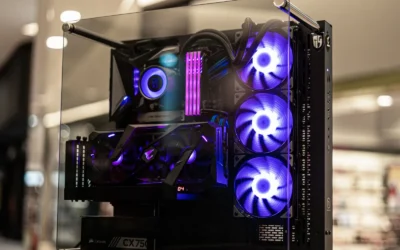
The build comes in a matte black tower with three RGB fans plus a vertical CPU cooler that keeps airflow decent and looks sharp on a desk. You get WiFi 6 and Bluetooth 5.3, six USB ports and HDMI output, all powered by a 400W wide-voltage power supply in a compact footprint.
Drawbacks reflect its age. The platform uses DDR3 at 1600MHz, the motherboard lacks TPM 2.0 needed for some newer titles, and usable expansion is more limited than the advertised four slots. Reviewers also note that upgrade options are restricted compared to current DDR4 and DDR5 systems.
Overall, the OKAMUS-7 makes sense as an ultra affordable starter PC or low-cost project base if you plan to add your own graphics card, RAM and storage. If you want true gaming performance right out of the box without modifications, choose a system with a dedicated GPU and a newer platform.
Processor: Intel Core i5-4570 up to 3.6GHz with Intel Integrated Graphics, no dedicated GPU included.
Memory and Storage: 8GB DDR3 SDRAM at 1600MHz, max 32GB, 256GB M.2 SSD.
Connectivity: WiFi 6, Bluetooth 5.3, 6x USB ports, 3x HDMI ports, HDMI video output.
Design and Cooling: Matte black tower, 3x RGB fans plus vertical CPU cooler, air cooling, 400W PSU.
System: Windows 11 Home pre-installed, FCC certified, 1 year warranty.
Matching a Part to Your Build
If your priority is a low cost starter for school, work, and light play, an integrated graphics prebuilt can be a sensible entry point. The Pre-Built PC, i5 CPU Up to 3.6GHz illustrates this lane well, with an i5 processor up to 3.6GHz, integrated graphics only, 8 GB RAM, 256 GB M.2, WiFi 6 plus BT 5.3, and a 400W power supply in a matte black case with RGB fans. It boots quickly, handles browsing, office apps, and casual titles, and keeps initial outlay lower than a full custom build with a dedicated GPU. You should plan to add storage soon and consider whether 8 GB meets your multitasking needs.
If you aim for smooth 1080p gaming with higher detail settings, you should prioritize a dedicated GPU path from the start. In that scenario, compare the total cost of a prebuilt that already includes a capable graphics card against a custom parts list where you select the GPU, a power supply that meets the GPU maker recommended wattage with headroom, and a case with proven airflow. The example system above is not the right baseline for this goal because it relies on integrated graphics and a 400W unit, so you would need to budget for both a GPU and likely a stronger power supply, plus verify case clearance for card length and cooler height.
If you are building a balanced home setup for creation, streaming, and gaming, weigh memory and storage headroom alongside graphics. Creators often benefit from 16 GB or more RAM and at least 512 GB to 1 TB of fast storage, plus extra M.2 slots for future expansion. Whether you build or buy, confirm the motherboard memory support, the number of drive bays, and the power supply capacity for later GPU or capture card additions. A quiet, well ventilated case also helps during long sessions, so you may want to review quiet gaming PC cases that stay cool without the noise as you weigh acoustics against thermal performance.
Common Mistakes
Choosing an undersized power supply is a frequent misstep. Builders often pick a 400W unit because it is included or inexpensive, then later add a dedicated GPU that needs more wattage and additional PCIe power connectors. Always check the GPU maker recommended wattage, sum your CPU and GPU draw, and add headroom for transients and future upgrades. Never assume a unit handles any card, and follow the power supply and GPU maker guidance for cabling and load.
Ignoring physical clearance causes preventable returns. A tall air cooler may not clear your RAM or side panel, and a long graphics card may not fit a compact case. Before you buy, compare cooler height and radiator support against the case spec sheet, and confirm GPU length, PSU length, and fan or radiator thickness. If you are unsure, consult a detailed cooler comparison such as how to choose a CPU cooler for ryzen 7 9800X3D to see how height and clearance are evaluated, even if your CPU is different.
Overpaying for the wrong balance of specs is another pitfall. Some buyers chase more VRAM than the GPU can use effectively, or they pair fast memory with a platform that cannot run it at that speed without manual tuning. Others accept 256 GB of storage and 8 GB RAM to save up front, then quickly need upgrades that erase the savings. Match memory speed to your motherboard and CPU support, prioritize a GPU tier that fits your monitor, and ensure your storage and memory leave room for growth without immediate replacement.
Who Should Wait or Buy Differently
If your main goal is modern 1080p or 1440p gaming at higher settings, or you plan to add a dedicated GPU within a few months, an integrated graphics only system with 8 GB RAM, 256 GB M.2, and a 400W power supply is not ideal for you. It is not a good fit for buyers who need high frame rates in demanding titles, large game libraries without adding storage right away, or heavy multitasking with many browser tabs and creative apps open. In those cases you should either choose a prebuilt that already includes a dedicated GPU and a higher wattage power supply with headroom, or build custom so you can select the graphics card, memory capacity, storage size, and case airflow that match your performance target and upgrade timeline. If you can wait, saving for a balanced configuration with stronger graphics and power delivery will give you a smoother experience and fewer immediate upgrades.
Frequently Asked Questions
Is it cheaper to build or buy a gaming PC in 2026?
It depends on the tier you target and current component pricing. Prebuilts can be cheaper at the entry level because they bundle the OS, assembly, and support, while custom builds can be cheaper when you want specific parts or already own reusable components. Compare total cost including OS, extra storage or memory you will need soon, and warranty coverage before you decide.
Can I game on integrated graphics, or do I need a dedicated GPU?
Integrated graphics only is fine for desktop work and very light games at modest settings, but it is limited by shared system memory and will struggle with demanding titles at high detail. If you want consistent 1080p performance in newer games, plan for a dedicated GPU and a power supply that meets the GPU maker recommended wattage with headroom. Also verify case and cooler clearance for the card you choose.
What should I check before upgrading a prebuilt with a new GPU or more storage?
Check power supply wattage and available PCIe power connectors, case clearance for GPU length and cooler height, and the number of free RAM and M.2 slots. Confirm that your motherboard and case support the upgrades you plan, handle components with anti-static precautions, and follow manufacturer mounting instructions. Remember that BIOS updates and overclocking are done at your own risk and may void warranty.

Write Your Review
No reviews yet. Be the first to share your experience!