

You have just tightened the last screw, connected the last cable and pressed the power button for the first time. Knowing the first things to do after building a new gaming PC, BIOS, drivers, Windows setup and all, is what turns a pile of parts into a stable, responsive system. This buying guide style framework helps you decide what to do in what order, so you avoid wasted time, missed settings and early stability headaches.
Your priorities will shift based on a few variables you chose during the build. Your target resolution and refresh rate affects which drivers and settings matter most, your platform and socket determines which BIOS options you will see, your case size and clearance influences cooling and fan control, your power budget sets expectations for performance tuning, and whether you are building for today or planning a next upgrade changes how thoroughly you should document and update now. If you want a deeper reference while you work, the Troubleshooting & Optimization archive is a useful place to keep open as you go.
What Actually Matters
BIOS Checks and Initial Configuration Before You Touch Windows
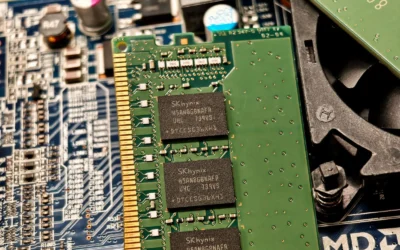
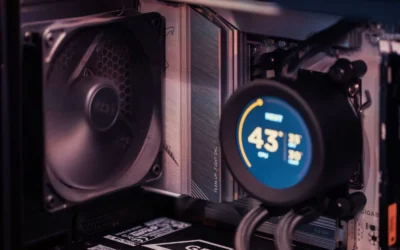
Your first stop after power on should be the BIOS or UEFI. You are not there to chase extreme tuning, you are there to confirm the system sees everything correctly. Check that your memory is running at its intended speed, that your boot drive is detected, that your CPU temperature looks reasonable at idle, and that your fans are spinning and can be controlled. This is also where you set the correct boot order for your Windows installer USB and enable the features your platform needs, such as the proper storage mode and virtualization if you plan to use it.
Approach BIOS updates with care. A BIOS update can add compatibility and fix quirks, but it is done at your own risk and may void warranty if interrupted or done incorrectly. Only update if you have a clear reason, such as support for your CPU or a documented fix, follow the motherboard maker instructions exactly, keep power stable, and do not interrupt the process. Use anti-static handling when touching components and avoid changing many settings at once so you can isolate what helps. For cooling context, reviewing how case airflow interacts with fan curves, like in our guide to how to choose an airflow case for a hot GPU, can help you set a quiet yet effective baseline before you install anything else.
Windows Installation, Activation and Core Drivers
Once the BIOS looks good, install Windows from a reliable USB installer. Choose the correct drive, let Windows create its partitions, and complete the initial setup without rushing through privacy and account options. After you reach the desktop, your next priority is drivers, not extra software. Start with the motherboard chipset driver from the board maker, then the graphics driver from the GPU maker, then network, audio and any other device that still shows as missing in Device Manager. Install one at a time and restart when prompted so you can spot any conflict early.
Resist the urge to install every utility you find. Many board utilities duplicate what Windows already does and can add background load. Focus on the essentials that affect stability and performance, and get them directly from the official support pages for your exact model. If you are on a newer platform, you may also need to check for firmware or driver packages that enable full feature support. Keep notes on which versions you installed and where you got them, so you can roll back if a new release causes issues. This disciplined order keeps your system lean and makes later troubleshooting much simpler.
Updates, Stability Checks and Sensible Optimization
With Windows and core drivers in place, let Windows Update run fully, then verify again. Updates can deliver security fixes and platform improvements, but they can also reset settings, so check your display resolution, refresh rate and audio output after they finish. Enable the Windows security features you want, set a restore point, and confirm your storage is running in its intended mode. From there, do light stability verification by using the system normally, watching for crashes, odd fan behavior or drives that disappear, rather than jumping straight to aggressive tuning.
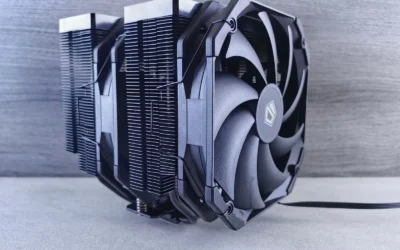
Optimization at this stage should be conservative. Enable the memory profile in BIOS only after you have confirmed basic stability, set a sensible fan curve that balances noise and temperature, and check cooler clearance against your case if you plan to adjust cooling. Following the manufacturer mounting instructions for your cooler and checking height or radiator clearance against your Cases & Airflow specs prevents contact with side panels or memory. Overclocking, if you consider it at all, is done at your own risk and may void warranty, so treat it as an optional later step once you have a stable baseline and good backups. Owners commonly report that a calm, step by step approach avoids the frustrating loop of changing too much at once.
Documentation, Learning Resources and When a Guide Helps
How you learn matters as much as what you install. Some builders prefer a structured book that walks through the entire sequence with photos and checklists, while others prefer short articles for each task. A well organized guide can help you remember the order of operations, keep track of BIOS settings you changed, and understand why each driver matters. Look for a resource that matches your experience level, explains terms in plain language, and stays focused on the initial setup rather than pushing you toward advanced tweaks you may not need yet.
When you evaluate a learning resource, consider clarity, recency and scope. Does it cover the full arc from first power on through BIOS, Windows and drivers in a logical order. Does it acknowledge risks and tell you when to stop. Does it use language you can follow without prior experience. You will also want to see whether it helps you plan for the future, such as noting your BIOS version and driver versions so your next upgrade is easier. A guide that encourages careful handling, including anti-static precautions and following manufacturer instructions, is a sign it respects your hardware and your time.
This article contains affiliate links. If you buy through one of our links, CustomPCGaming may earn a commission at no extra cost to you. Commissions never influence which products we recommend or how we rank them. Read our Affiliate Disclosure for details.
Quick Picks at a Glance

Prime How to Build a Gaming PC for Beginners

Prime Build Your Own Gaming PC Manual (Haynes)

Prime Build Your First PC Beginner's Guide 2025 Edition
As an Amazon Associate we earn from qualifying purchases. Product prices and availability are accurate as of the date/time indicated.
Pros
- Very clear and practical for complete beginners to follow during a real build
- Covers modern hardware standards including DDR5, NVMe and current CPUs/GPUs
- Empowers you to save money and customize versus buying a prebuilt PC
- Includes long-term guidance on maintenance, troubleshooting and upgrades
Cons
- Too basic for experienced builders wanting advanced techniques
- Text-only format lacks video demonstrations for visual learners
- Depth on streaming or editing specific optimizations is limited
This guide by Robert I. Grass is a complete, beginner-focused blueprint for building a modern gaming PC from scratch. It is tailored for first-time builders, gamers, streamers and creators who want a custom system without relying on expensive prebuilt options.
Its standout strength is practical, task-oriented instruction that you can follow during an actual build. It covers choosing compatible parts for your budget, step-by-step assembly, Windows and UEFI/BIOS setup, safe performance tuning, and troubleshooting common problems.
The book is well structured for real-world use, with clear sections that reflect current hardware standards. Coverage includes modern CPUs and GPUs, DDR5 memory, NVMe storage and current OS installation methods, making it relevant for today's builds.
As a text-based guide, it naturally lacks video walkthroughs that some visual learners may prefer. It is also intentionally entry level, so experienced builders looking for advanced overclocking or deep technical theory may find it too basic.
Overall, this is a highly accessible and practical starting point for anyone building their first gaming or streaming PC. If you want clarity, confidence and control over your next rig, this guide delivers excellent value as your build companion.
Pros
- Excellent for beginners with clear, accurate and engaging writing
- Comprehensive coverage of current hardware, VR and component compatibility
- Highly visual, well structured format that is easy to follow during a build
- Great teaching tool for teens and families learning together
Cons
- Published in 2019, so the very latest CPUs, GPUs and DDR5 platforms are not covered
- Print format cannot provide real-time updates like online video guides
- 172 pages limits depth on advanced topics like overclocking and troubleshooting
The Build Your Own Gaming PC Manual from Haynes Publishing is a beginner friendly, step by step guide to planning and assembling a custom gaming computer. Written by Adam Barnes, it is designed for first time builders, parents teaching kids, and anyone who wants to understand PC hardware without confusing jargon.
It excels at simplifying component selection for any budget, from affordable streaming setups to high end rigs ready for next year titles. Readers highlight its practical coverage of modern essentials like NVMe drives, VR readiness and video technology, making it a reliable companion to YouTube tutorials in real world builds.
As a Haynes Manual, the book features a colorful, highly visual design with clear photos and diagrams that make complex steps easy to follow. The 172 page softcover is well organized, logically sequenced, and sized for convenient reference right at the workbench while you build.
The main drawback is its 2019 publication date, so the newest generations of CPUs, GPUs and standards are not included. It also lacks the interactive detail of video, and experienced enthusiasts may find advanced topics like overclocking covered only briefly.
Overall, this is an excellent and encouraging entry point for anyone intimidated by building a PC from scratch. If you want an affordable, accurate and engaging printed guide to get started with confidence, this manual is a smart and highly recommended choice.
Publisher: Haynes Publishing UK, Publication Date: November 26, 2019
Language: English, Print Length: 172 pages, ISBN-10: 1785216686, ISBN-13: 978-1785216688
Item Weight: 2.31 pounds, Dimensions: 8.5 x 0.5 x 11 inches
Category: PC Hardware and Game Programming, Format: Softcover Haynes Manual
Pros
- Very clear, concise and easy to read for absolute beginners
- Up to date 2025 coverage including compatibility, BIOS and OS setup
- Practical personal insights from a lifelong enthusiast and IT professional
- Includes troubleshooting help and three real world example builds
Cons
- Only 65 pages, more of a concise booklet than a comprehensive manual
- Too basic for intermediate builders seeking advanced techniques
- Limited images and visual guides for a hands on build process
Build Your First PC: A Complete Beginner's Guide (2025 Edition) by Ashton Horton is a compact, practical manual designed to take absolute beginners from zero knowledge to a successful first build. It is perfect for gamers, students, and home office users who want to avoid overpriced prebuilts and learn the process with confidence.
In real world use, the guide shines with its clear, no nonsense approach to part selection, compatibility checks with PCPartPicker, and the correct assembly order from CPU to cable management. Readers praise how it simplifies BIOS setup, OS installation, and first boot, plus the troubleshooting section that quickly resolves common rookie errors.
As a 65 page independently published booklet, the design is lightweight and highly digestible rather than a dense technical textbook. The layout prioritizes concise text and actionable steps, making it easy to follow alongside your build without getting overwhelmed by jargon.
The main drawback is its brevity, as experienced users may find it too basic and some readers note it feels like a short document expanded into booklet form with limited images. It also focuses on fundamentals, so those seeking advanced overclocking, custom water cooling, or in depth theory will need additional resources.
Overall, this is an excellent, up to date starter guide that delivers real value for first time builders who want clarity and confidence. If you want a straightforward, budget conscious walkthrough from a lifelong enthusiast who started building at age 11, this book is a smart and accessible choice.
Author: Ashton Horton
Title: Build Your First PC: A Complete Beginner's Guide (2025 Edition)
Publisher: Independently published, June 27, 2025
Language: English
Print Length: 65 pages
Dimensions: 5.5 x 0.16 x 8.5 inches
Item Weight: 4.8 ounces
ISBN-13: 979-8289950314
Category: PC Hardware Books
Matching a Part to Your Build
If this is your very first build and you want a calm, start to finish companion, How to Build a Gaming PC for Beginners is positioned as the most approachable entry point. It is written without assuming prior experience and walks through the process in practical language, which pairs well with the BIOS first, Windows second, drivers third workflow described above. Use it to double check each step, especially the early BIOS screens and the order in which you install drivers, so you do not skip a foundational setting.
If you are building on a budget but still want solid performance and you like a manual style reference you can keep on your desk, Build Your Own Gaming PC fits that scenario. It frames decisions around getting the performance you want on a budget you can afford, whether your focus is high end play or streaming and general gaming. For the first things after the build, use it to remind yourself to verify memory settings, confirm storage detection and prioritize essential drivers before adding extras, which is especially helpful when you are trying to keep software overhead low.
If you want a no nonsense walkthrough that specifically calls out the confusion of jargon and overpriced prebuilts, Build Your First PC: A Complete Beginner’s Guide is aimed at that first time confidence gap. It is useful when you want clear explanations of why each early step matters, from entering BIOS to installing Windows and getting online. Pair it with a quick check of your cooler and case compatibility, as discussed in our CPU Cooling coverage, so your fan control and temperature expectations are realistic from day one.
Common Mistakes
Skipping BIOS verification and jumping straight to Windows is a common misstep. If memory is not running at its intended profile, if the boot drive is in the wrong mode, or if fans are stuck at a fixed speed, you will chase software fixes for what is really a firmware setting. Take ten minutes to confirm detection, temperatures and fan response before you install anything, and document any change you make so you can revert it.
Installing drivers in the wrong order or from unofficial sources creates another avoidable headache. Grabbing a random graphics package before the chipset, or using a third party bundle that adds extra utilities, can leave you with conflicts and background services you do not need. Get chipset first, then graphics, then network and audio from the official pages for your exact motherboard and GPU models, and restart between key installs.
Over tuning too early is the third pitfall. Enabling aggressive memory profiles, pushing fan curves to silent at all costs, or attempting overclocking before you have a stable baseline can mask a simple issue like a loose cable or a cooler that does not clear your case or memory. Check cooler height or radiator clearance against your case spec sheet, follow the manufacturer mounting instructions, and save performance tuning for after you have confirmed the system is stable through normal use and updates.
Who Should Wait or Buy Differently
A dedicated setup guide is not ideal for everyone. If you have already built several systems, are comfortable navigating BIOS, installing Windows from USB and sourcing drivers directly from manufacturers, you may not need a beginner focused book and would be better served by model specific documentation and a short checklist. This approach is also not a good fit if you are looking for deep, component specific tuning or advanced overclocking theory, in that case you should wait and choose a resource that focuses on that specialty rather than the first day setup sequence.
Frequently Asked Questions
What should I do first in BIOS on a brand new gaming PC?
Enter BIOS on first boot and confirm that your CPU, memory and drives are detected, check idle temperature and fan behavior, and set your Windows installer USB as the first boot device. Only change what you understand, save a note of defaults, and remember that BIOS updates and any overclocking are done at your own risk and may void warranty.
Which drivers do I install after Windows is on the desktop?
Install the motherboard chipset driver first, then the GPU driver from the graphics maker, then network, audio and any remaining devices shown in Device Manager. Get each package from the official support page for your exact model, install one at a time, and restart when prompted to keep the process clean.
Do I need to update BIOS and enable the memory profile right away?
Not necessarily. Update BIOS only if you have a clear reason such as CPU compatibility or a documented fix, and enable the memory profile after you have confirmed basic stability. Use anti-static handling, follow manufacturer instructions, and verify that your cooler and memory clear your case before you make changes that affect stability.



Write Your Review
No reviews yet. Be the first to share your experience!